The free AI Canva Magic Layers alternative that hands you the layers
Magic Layers turns a flat image into editable elements — inside Canva. This Magic Layers alternative does the same split with AI and gives you the layers as a PSD or transparent PNGs, for Photoshop, Figma, After Effects, or Canva itself. A free single-layer converter is built in.
Drop an image here
PNG or JPG of a design · also WebP · up to 10 MB
- Posters, flyers, social graphics and cards split best — the same kind of image Magic Layers is built for.
- Text comes back as pixels on its own layer, not as live type.
- Only upload designs you have the right to edit.
Only need the file format? Once you choose an image you can save it as a single-layer PSD, made in your browser.
Sample · Opening flyer
 background
 confetti
 cupcake
 title
title details
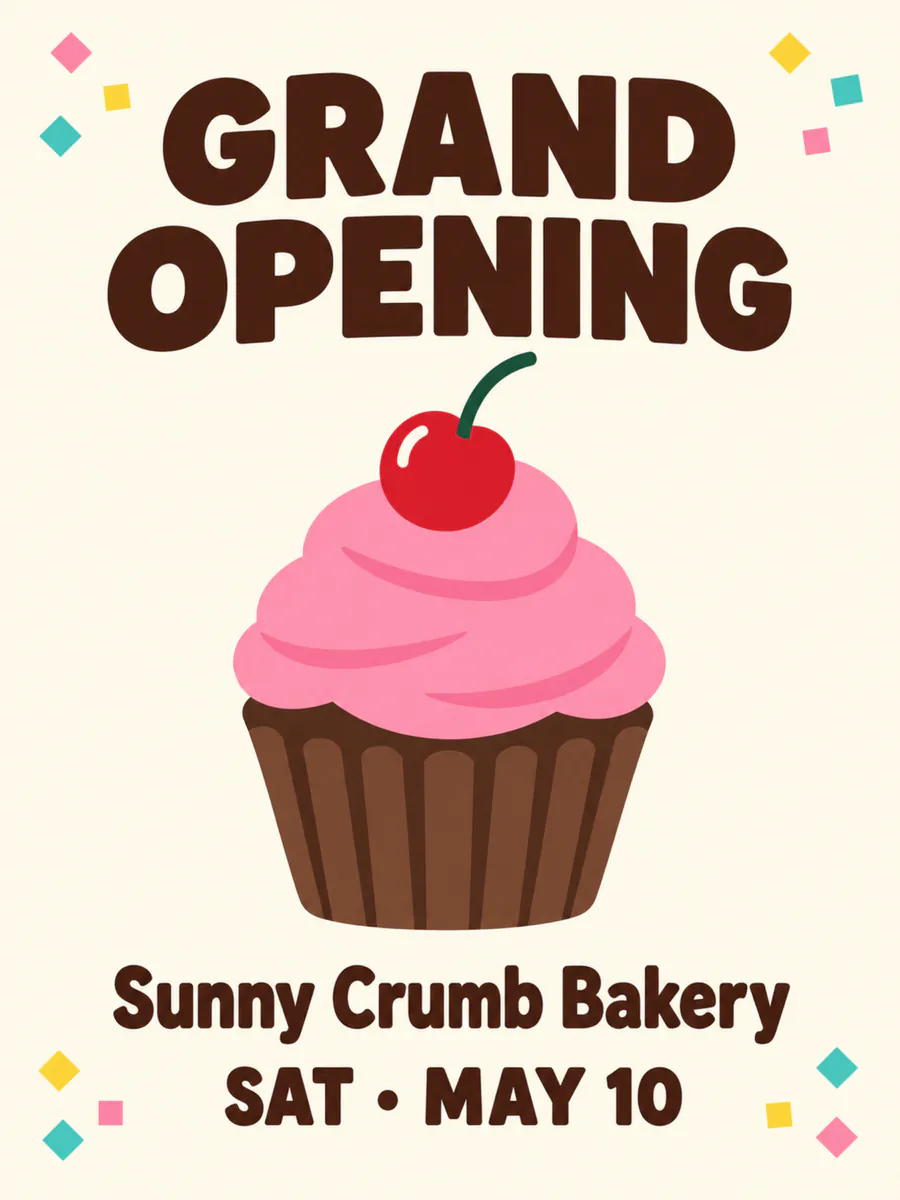
One design in, 5 transparent layers out — every one on the original canvas, so they stack back into the picture.
Your layers open in the tools you already use





Examples
Designs split like Magic Layers, into layers you can download
What a flat image turns into: the stack on the left, every layer on the right. Download the sample as a layered PSD and open it yourself.
Opening flyer
A flattened flyer: confetti, cupcake, headline and details each on their own layer, the cream background filled in behind them. Change the date, keep the rest.
- detailsbakery name and date
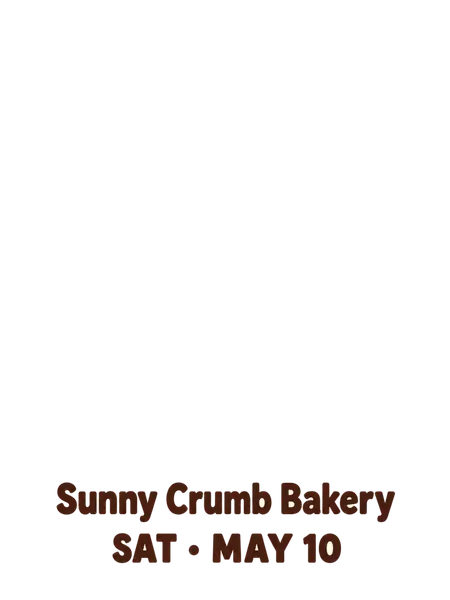
- titleGRAND OPENING headline
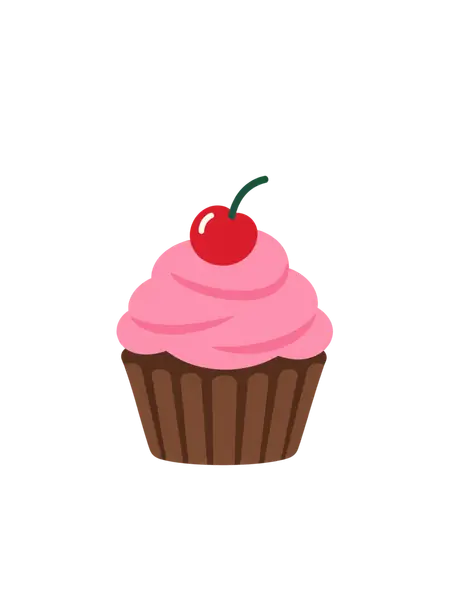
- cupcakepink cupcake with a cherry
- confettitwelve confetti pieces in the corners
- backgroundcream background, rebuilt behind everything
5 named layers, built in your browser as a standard PSD for Photoshop, Photopea and GIMP.
Magic Layers, and where this differs
The same idea as Magic Layers, a different destination
Magic Layers and this alternative both take a flat design and pull it apart. Magic Layers rebuilds it as a Canva design; this rebuilds it as a file you can open anywhere.
originalcupcaketitledetailsUnlike Magic Layers, the layers leave with you
In Canva, the elements Magic Layers finds live inside a Canva design, and Canva downloads finished designs as PNG, JPG, PDF and a few more — not as a layered PSD. Here every layer is a file of its own: a PSD with one layer per element, or one transparent PNG per layer, each on the original canvas so they stack back into the picture.
Open the PSD in Photoshop, Affinity Photo, Photopea or GIMP; drop the PNGs into Figma or After Effects — or upload them to Canva and carry on there.
 original
 background · filled in
The background is filled in behind every element
Move the title, delete a shape, shrink the button: the background underneath is already complete, so nothing leaves a hole. Filled-in areas are generated, so check them before you publish.
 original
 quote · pixels
Text comes back as pixels — Magic Layers brings it back live
This is Canva’s real advantage: Magic Layers restores text as live, editable text boxes inside Canva. Here a headline comes back as an image on its own layer. You can move it, recolour it or delete it and retype it in your own font — but not edit the words in place. If retyping inside Canva is the whole job, Magic Layers is the shorter path.
Photos, not only designs
Canva says Magic Layers works best on graphic designs and illustrations, and that photo-realistic images “may vary”. This splits photographs too — product shots, portraits, flat lays — see the JPG to PSD page for those.
Size limits, here and in Magic Layers
Magic Layers does not take images over 5,000 px on the long edge. Here a layer split takes JPG, PNG or WebP files up to 10 MB — a larger file is refused, not resized. The free single-layer converter scales anything over 4,096 px on the long edge down in your browser first.
Canva Magic Layers vs Image to Layer
Facts, not a scorecard — Magic Layers and this alternative are each better at something. Check any row against the Canva sources named underneath.
| Canva Magic Layers | Image to Layer | |
|---|---|---|
| Splits a flat image into separate elements | Yes | Yes |
| Where the layers end up | Inside the Canva editor | In a PSD or PNGs you download |
| Layered PSD | No | Yes |
| One transparent PNG per layer | No | Yes |
| Text | Restored as live, editable text | Pixels on its own layer — retype it |
| Photographs | Built for designs; photos “may vary” | Designs and photos |
| Editors you can continue in | Canva | Photoshop, Affinity, Photopea, GIMP, Figma, After Effects — or Canva |
| Largest image | Up to 5,000 px | Files up to 10 MB (JPG, PNG, WebP) |
| What it costs | Canva AI credits; the monthly allowance depends on your plan | One flat price per run, whatever the layer count |
Canva details are from Canva’s Magic Layers announcement (10 March 2026) and its Help Center article on Magic Layers, both checked on 26 September 2026. Both tools infer layers from pixels; neither recovers the original source file.
How it works
How to split a flat design with this Magic Layers alternative
 bakery-opening-flyer.png
Upload the flat design
The PNG or JPG you exported — from Canva, an AI generator or anywhere else.
- Sample · 5 layers


Elements, text and background come apart
Each on its own transparent layer, aligned on the original canvas, the background filled in where things stood.
- PSDbakery-opening-flyer.psdSample
- details
- title
- cupcake
- confetti
- +1 more
Download the PSD or the PNGs
Open the PSD in Photoshop, or upload the PNGs to Canva as separate elements and lay them out there.
Who it is for
Who wants a Canva Magic Layers alternative
Canva users who also use Photoshop
Pull a design apart here, retouch or composite in Photoshop, then bring the pieces back into Canva as PNGs.
Designers handed a flat file
A client sends the JPG and nobody has the source. Get the parts back as layers instead of rebuilding the whole thing.
Marketing teams
Re-cut the same design for another size or another market without going back to whoever made it.
Motion designers
A layered PSD imports into After Effects with the layers intact — the shapes can move, the background stays whole.
Magic Layers alternative: one flat image, or the design in layers
Saving a flat design as PSD gives you one layer; that is only a change of file type, and you can do it here in your browser. Layers are what make an element movable, and that is what image to layer does.
Single-layer PSD: the design as one layer
- Layer 1
Layered PSD: confetti, cupcake, text and background apartSample
- details
- title
- cupcake
- confetti
- background
FAQ
Canva Magic Layers alternative questions
Related tools
- Image to LayerSplit any image into editable layers
- AI image to PSD with layersChatGPT and Midjourney images — fix a word, move a part
- PNG to PSD with layersTransparent PNGs, logos and screenshots, transparency kept
- How to separate an image into layersBy hand in Photoshop or GIMP, or in one step with AI
Take your layers anywhere with this Magic Layers alternative.
Or save it as a single-layer PSD right now — it never leaves your browser.
Choose a design