Free AI generated image to PSD converter — with layers
Convert an AI generated image to PSD with layers: the subject, the text and the background of your ChatGPT, Midjourney or Gemini image come back as separate layers, so you can fix a word or move things without generating the image again. A free single-layer PSD converter is built in.
Drop an image here
PNG, JPG or WebP from any image generator · up to 10 MB
- Text comes out as pixels on its own layer, not as editable type.
- Hidden areas are generated, so check them before you publish.
- Only upload AI images you have the right to use.
Only need the file format? Once you choose an image you can save it as a single-layer PSD, made in your browser.
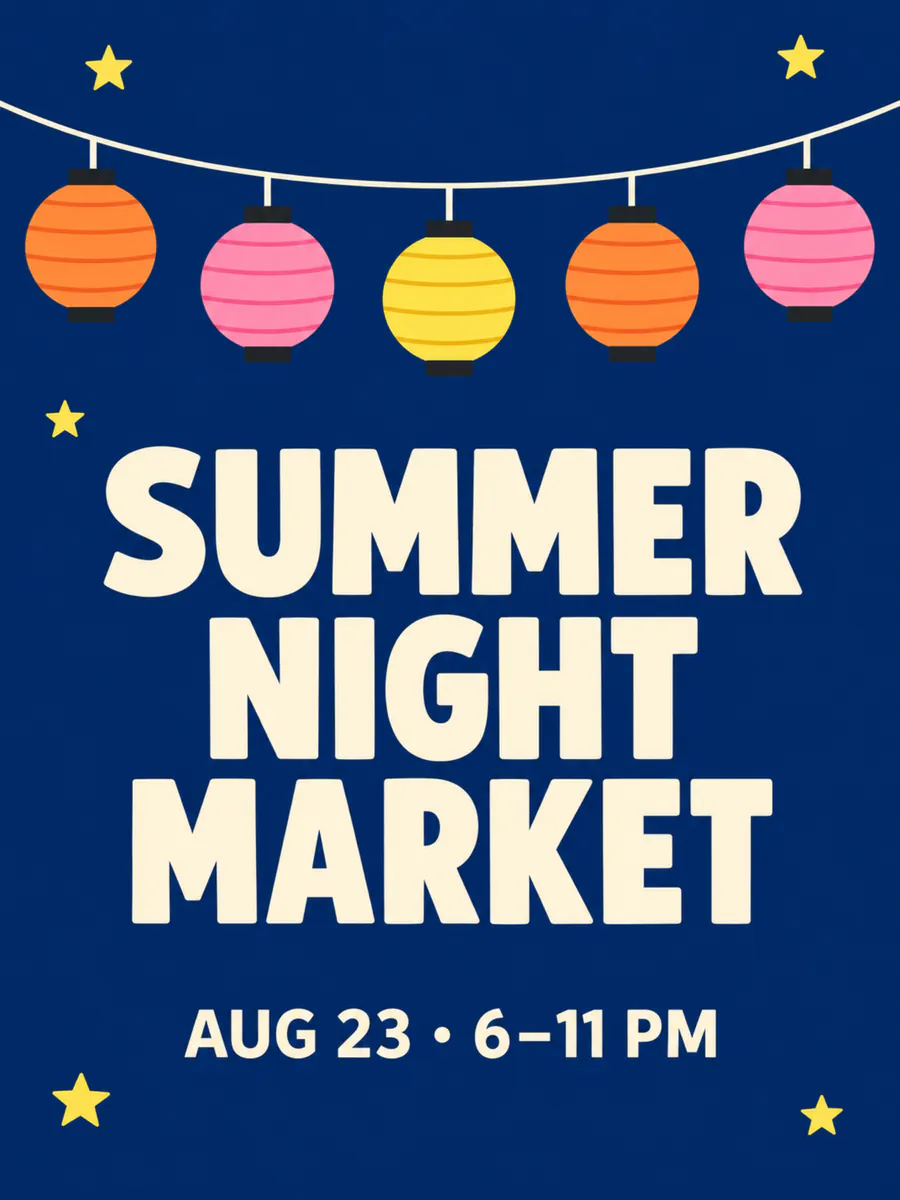
Sample · Event poster
 background
 lanterns
 stars
stars title
title date
date
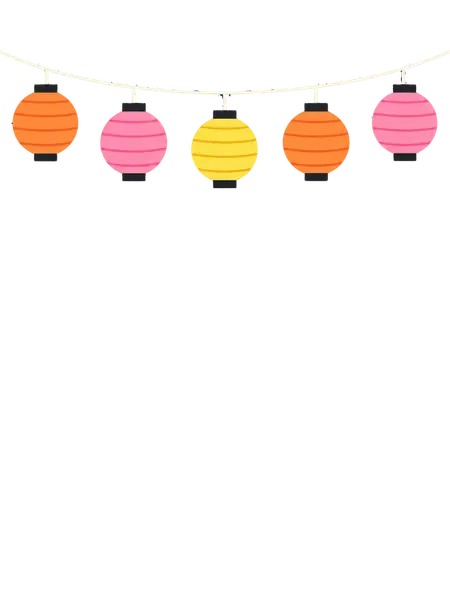
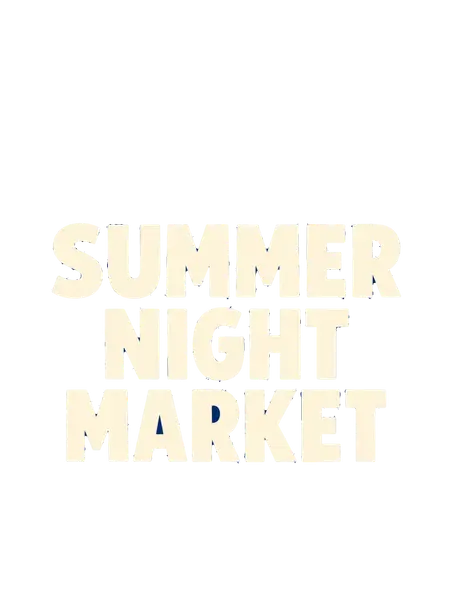
One AI image in, 5 transparent layers out — every one on the original canvas, so they stack back into the picture.
Your layers open in the tools you already use

Examples
AI-generated image to PSD, layer by layer
What a flat image turns into: the stack on the left, every layer on the right. Download the sample as a layered PSD and open it yourself.
Event poster
A generated poster: the lanterns, the stars, the headline and the date each on their own layer over a rebuilt navy background — change the date, keep everything else.
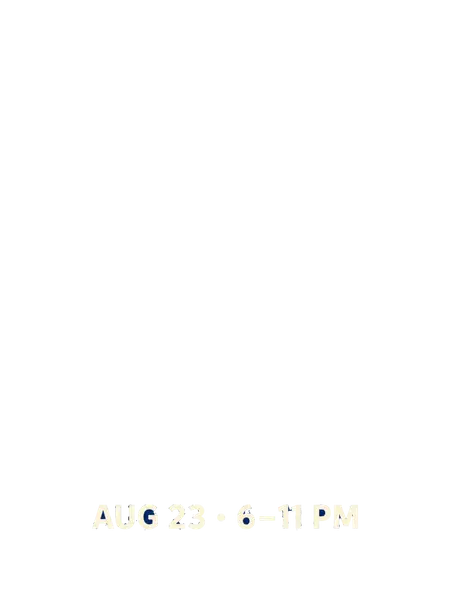
- dateAUG 23 • 6–11 PM
- titleSUMMER NIGHT MARKET headline
- starsfive small yellow stars
- lanternsstring of five paper lanterns
- backgrounddeep navy background, rebuilt behind every element
5 named layers, built in your browser as a standard PSD for Photoshop, Photopea and GIMP.
Before you generate
Write prompts for AI images that split cleanly
The AI images that separate best are the ones generated with separation in mind. These rules come from making our own examples.
originalstarstitledateFive habits that help an AI image split
- A plain background — a flat colour or a smooth gradient.
- Space between objects, instead of things piled on each other.
- Text in its own block, away from busy artwork.
- Few large overlaps: whatever sits behind something has to be invented.
- No smoke, glass, glow or other see-through effects.
 original
 misspelled line · pixels
Fixing a misspelled word in an AI image
AI image generators still get a word wrong now and then — the taco poster in the examples above says DELICOUS. When the text sits apart from the artwork it comes out on its own layer: delete that layer, retype the word in Photoshop in a similar font, and the background underneath is already filled in.
The exported text is pixels, not live type — the fix is to replace it, not to edit it.
 original
 robot
robot speech bubble
Not rig-ready parts
A character in an AI image comes away from its background as a whole — a first split for edits and compositing. It does not produce the dozens of separate parts that Live2D or Spine rigging needs.
Add this to the end of your prompt
plain flat background, objects clearly separated with space between them, text set apart from the artwork, no overlapping elements, no smoke, glow or transparency effects
How it works
How to convert an AI-generated image to layered PSD
 night-market-poster.png
Upload the AI-generated image
PNG, JPG or WebP, straight from ChatGPT, Midjourney, Gemini or any other generator.
- Sample · 5 layers
Subject, text and background come apart
Each on its own transparent layer, the background filled in where things stood.
- PSDnight-market-poster.psdSample
- date
- title
- stars
- lanterns
- +1 more
Fix, move, re-export
Replace a wrong word, nudge the layout or drop in a new background — no new generation needed.
Who it is for
Who converts AI-generated images to PSD
ChatGPT and GPT Image users
A great AI image with one wrong word or one element in the wrong place. Fix that part instead of rolling the dice again.
Midjourney artists
Take a generation into Photoshop as layers to composite, retouch or build a series around the same subject.
Social and marketing teams
Generated posters and ads that need a date, a price or a language changed before they go out.
Motion designers
Depth layers for parallax, and a subject that can move independently of the background.
One flat AI image, or the generation in layers
An AI-generated image arrives as one flat layer; saving it as PSD does not change that. Splitting it with image to layer is what makes a single word or a single object editable.
Single-layer PSD: the generation as one layer
- Layer 1
Layered PSD: lanterns, text and background apartSample
- date
- title
- stars
- lanterns
- background
FAQ
AI generated image to PSD questions
Bring your AI-generated image back into layers.
Or save the AI image as a single-layer PSD right now — it never leaves your browser.
Choose an AI image